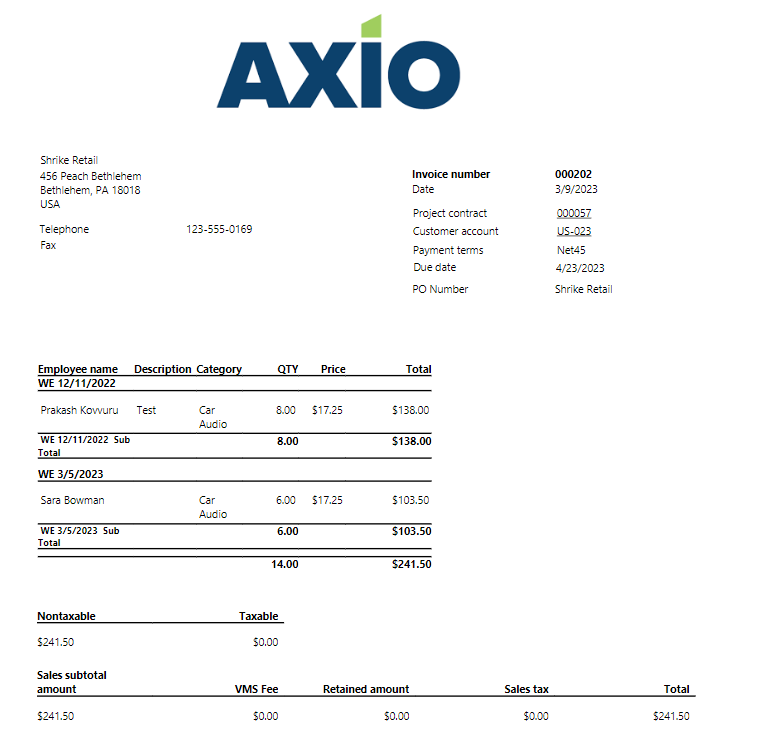
Flexible Invoice App for Microsoft Dynamics 365 Finance and Operations
Overview
The Flexible Invoice App for Microsoft Dynamics 365 Finance and Operations enables an organization to send Project Invoices to customers effectively.
In standard Microsoft Dynamics 365 Finance and Operations, to get an invoice to a customer, a user must manually print the Project Invoices, save the invoices to their PC, find the saved file, and then share it via Email to the customer, which is a time-consuming and tedious task. In addition, a customer might need reports related to invoices with some specific grouping. This can be done by Flexible invoice very easily and efficiently.
Process Setup
Enable the Flexible Invoice Feature and select the required parameters.
Go to AXIO ProServ Module >> Setup >> AXIO ProServ Parameters
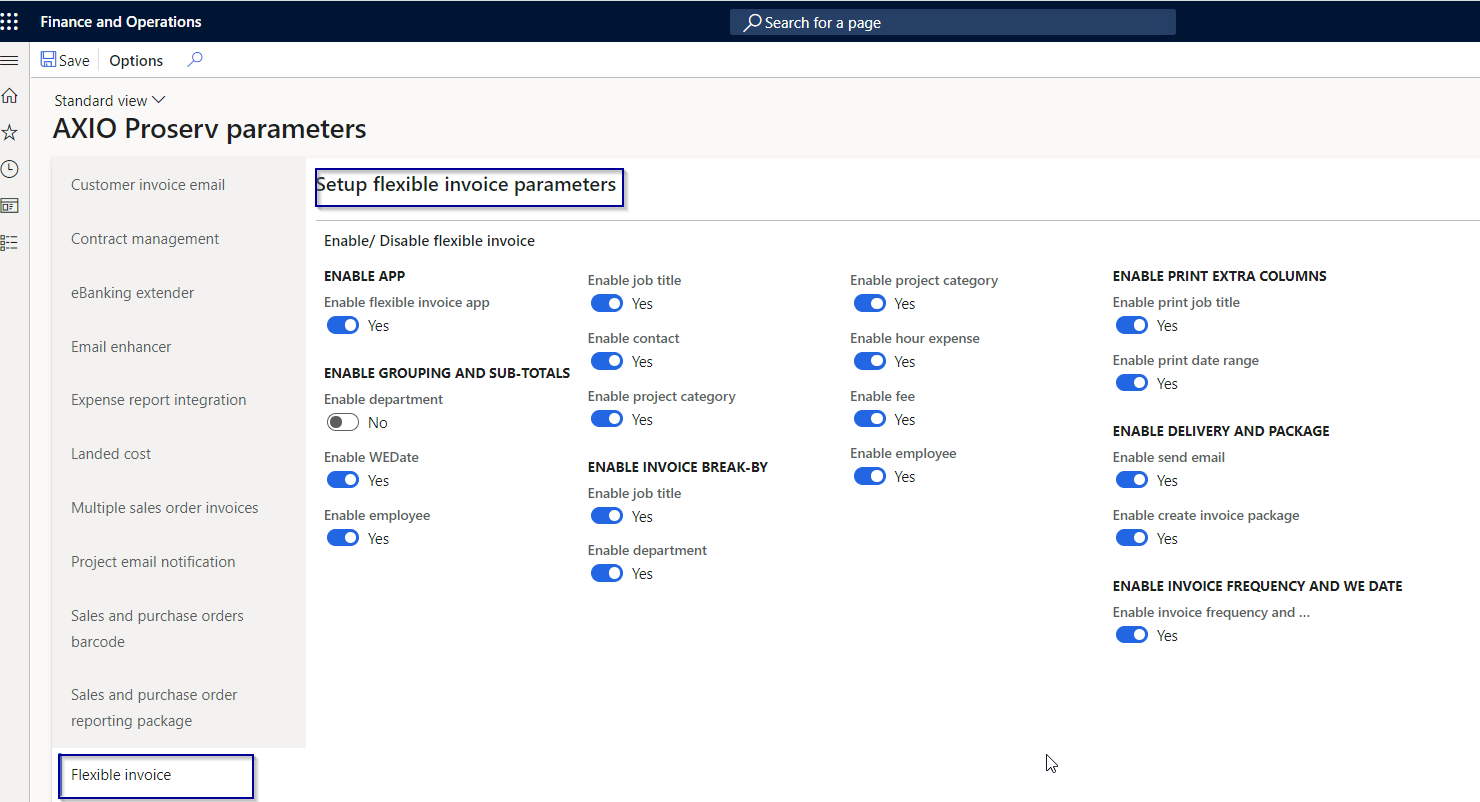
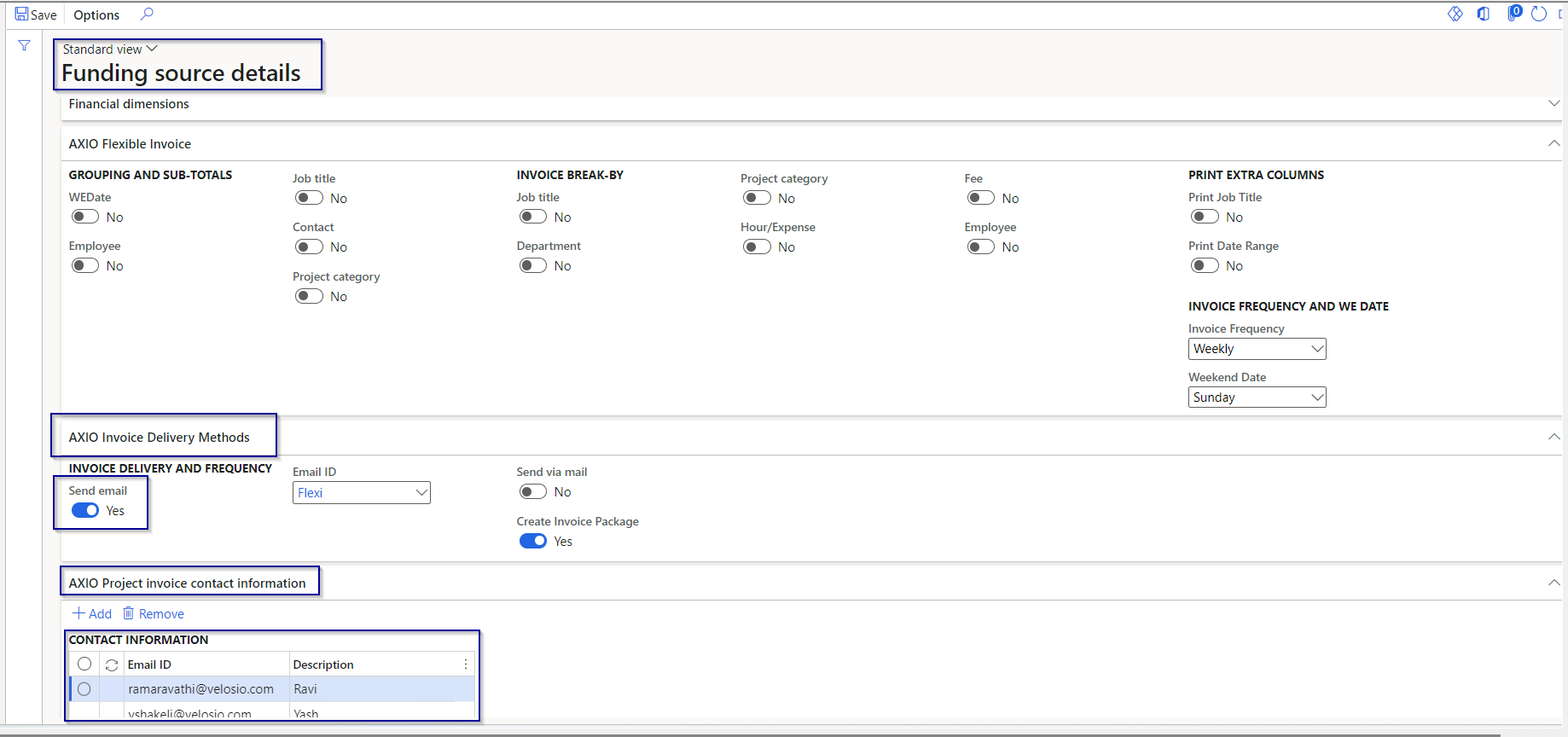
Select the parameters under Project contracts funding source details.
Go to PMA Module >> Projects >> Project Contracts >> Contract > Funding source details >> AXIO Invoice Delivery Methods and AXIO Project Invoice contact information.
Create a Project Proposal under PMA Module or from AXIO ProServ menu options. This is the standard functionality of Microsoft Dynamics 365 Finance and Operations. Go to PMA module >> Project Invoices >> Project Proposal creation.
Click New and select the Contract ID or Project ID required to create the invoices. The related invoice lines will pop-up with the customized fields like Department, Job Title, and Weekend Date.
Select the required lines and Click OK.
Project Invoice proposal will be created.
Post the invoice proposal.
Create Project Invoice Package
Go to AXIO ProServ >> Flexible Invoice >> Periodic >> Invoice package creation.
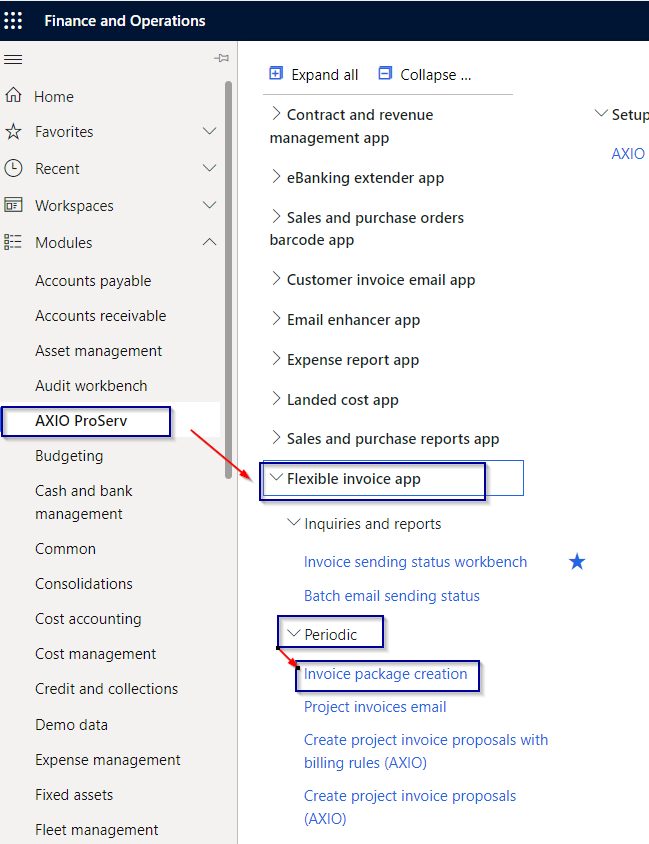
Click on the menu Invoice package creation and the Invoice package creation form opens.
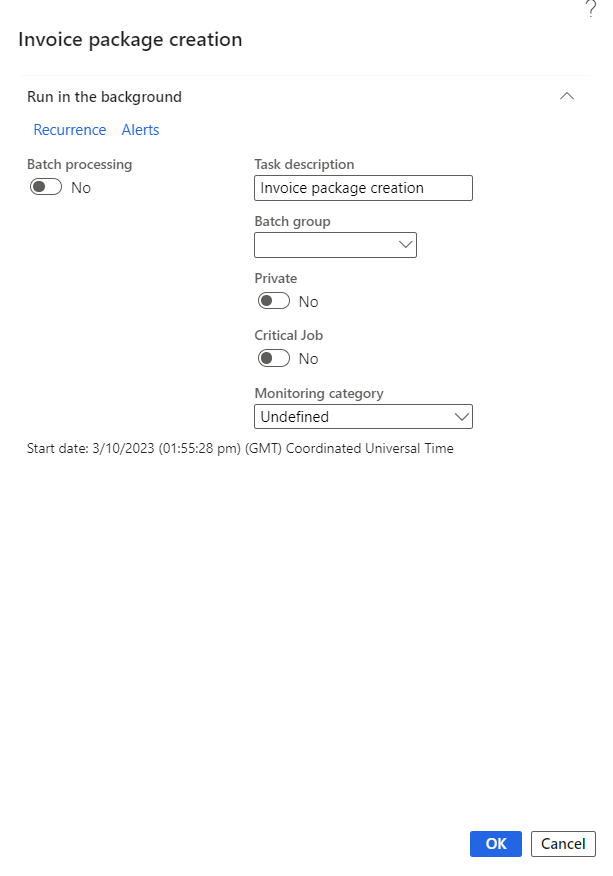
Click Ok.
A document is created and downloaded.

Generate the Project Invoice Email
Go to AXIO ProServ >> Flexible Invoice >> Periodic >> Project invoices Email.
Important
Before going through this process, user needs to enable the option at Funding source details and AXIO ProServ Parameters.
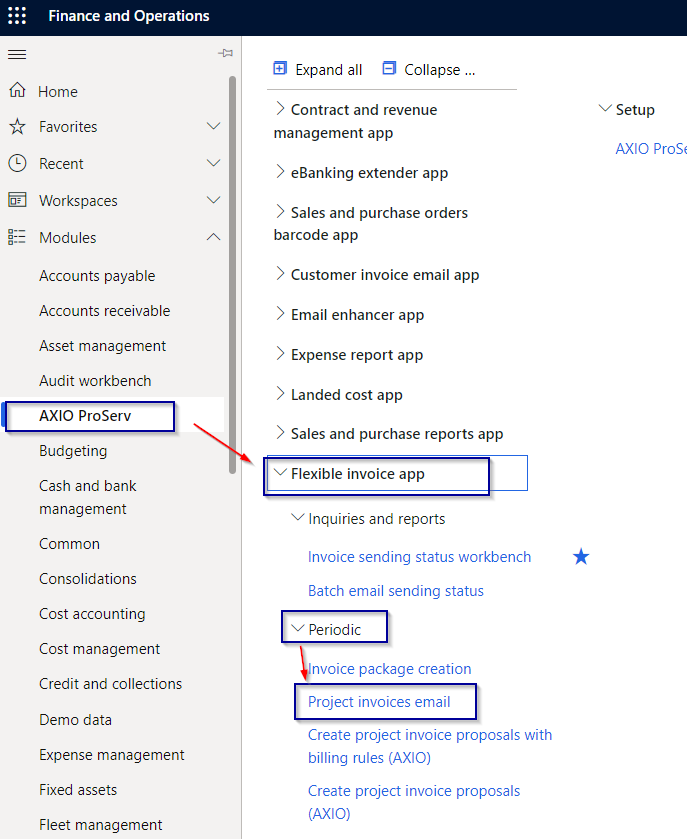
A screen will pop-up after clicking on Project invoices Email-
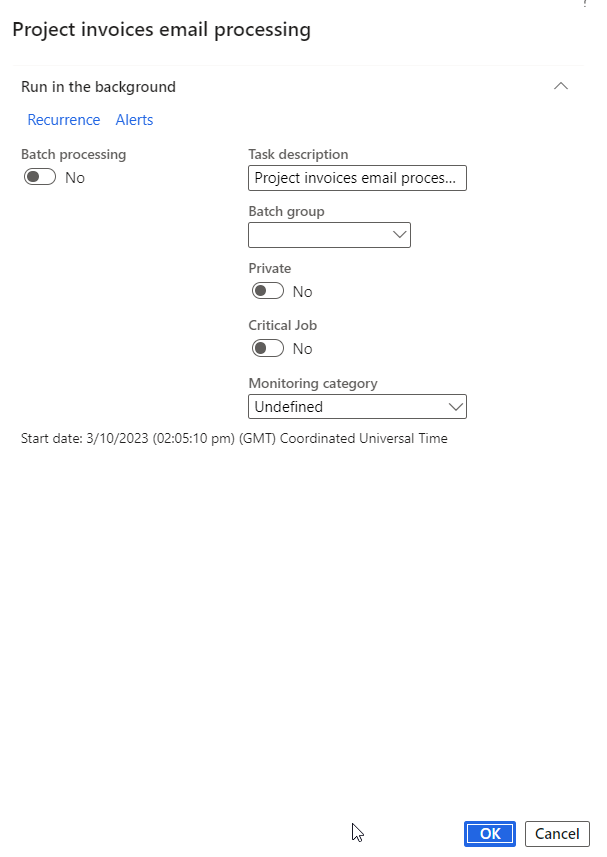
Output: An Email with attachment is sent to the Email address set up in Flexible parameters at Funding source details.
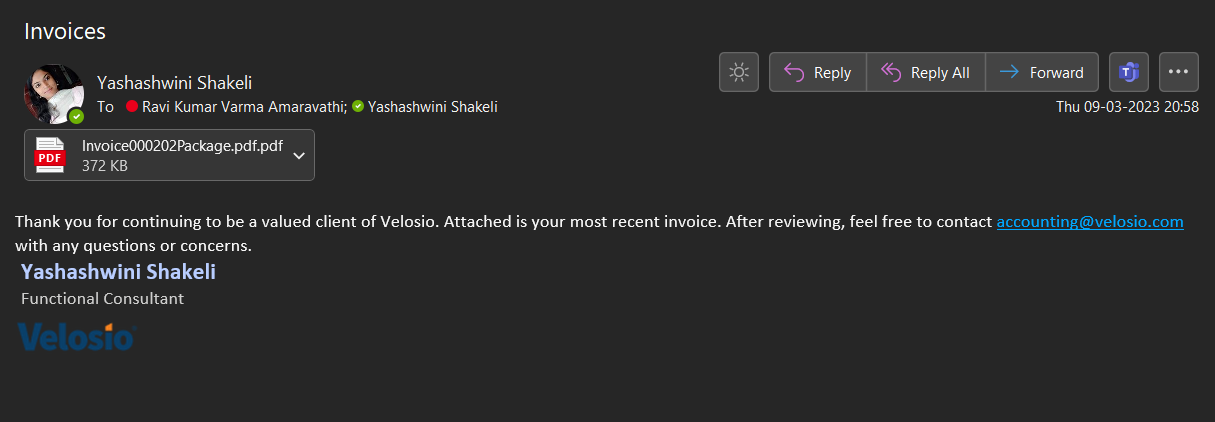
The user can generate reports based upon the requirement.
The reports are generated as per the selection under Project Contract funding source details.
The selection is divided into two types:
Group By and
Invoice break by
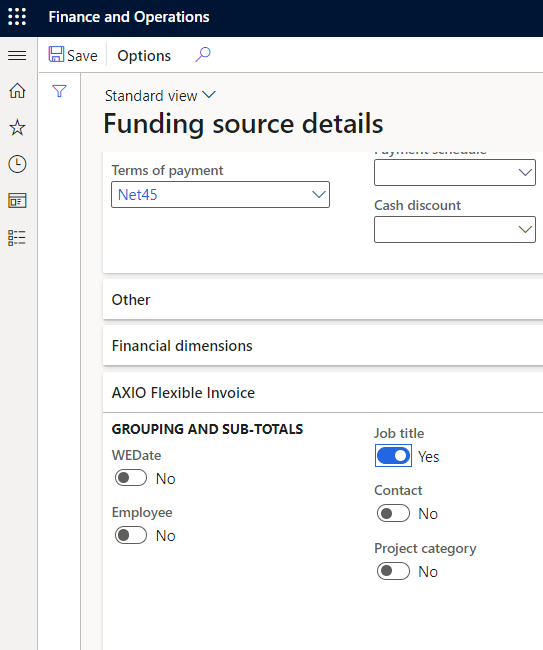
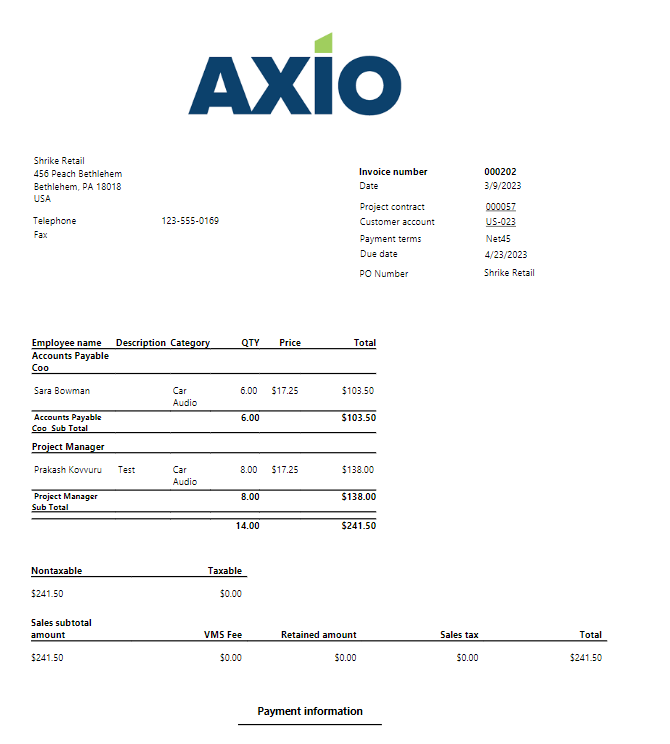
If the user selects Job title and saves, the report will be run and generate a report with Job titles.
a. Job Title: Accounts payable and Project manager Output:
b. Project Category
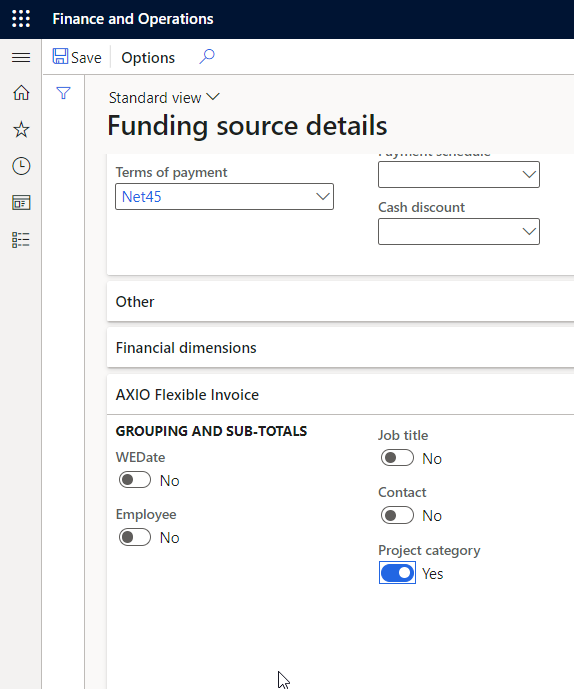
Output:
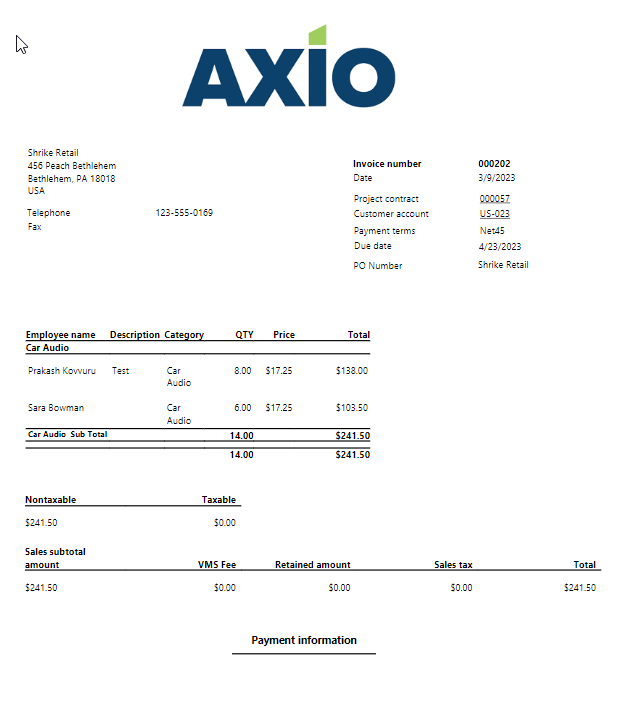
Invoice Break by
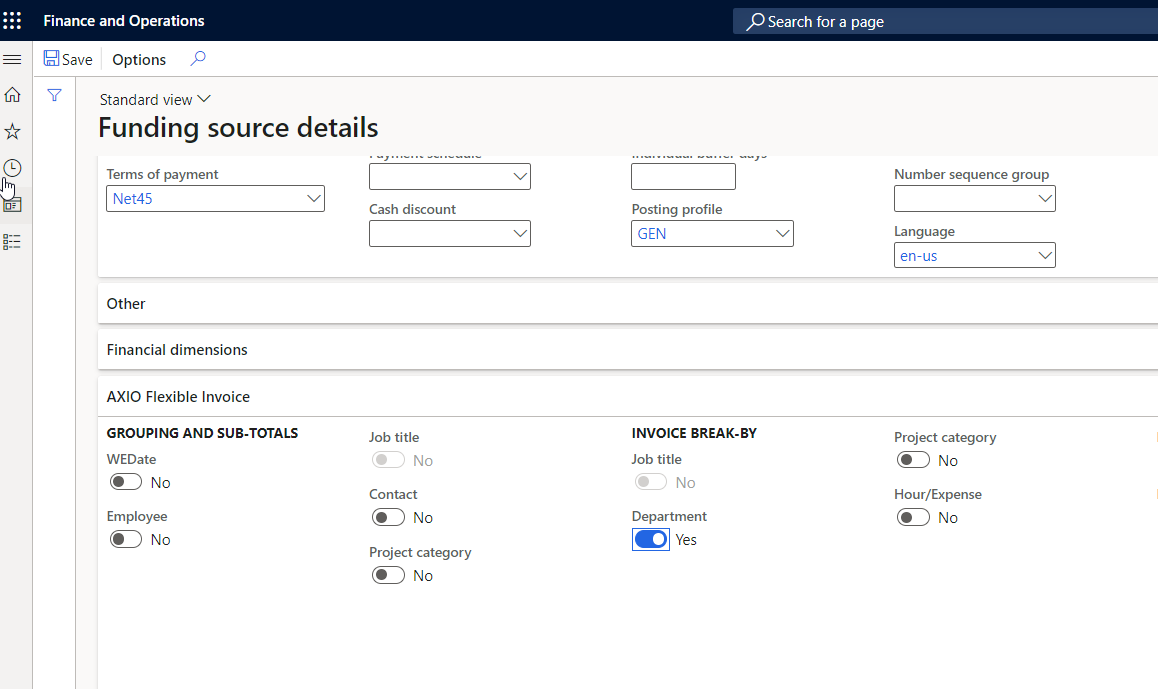
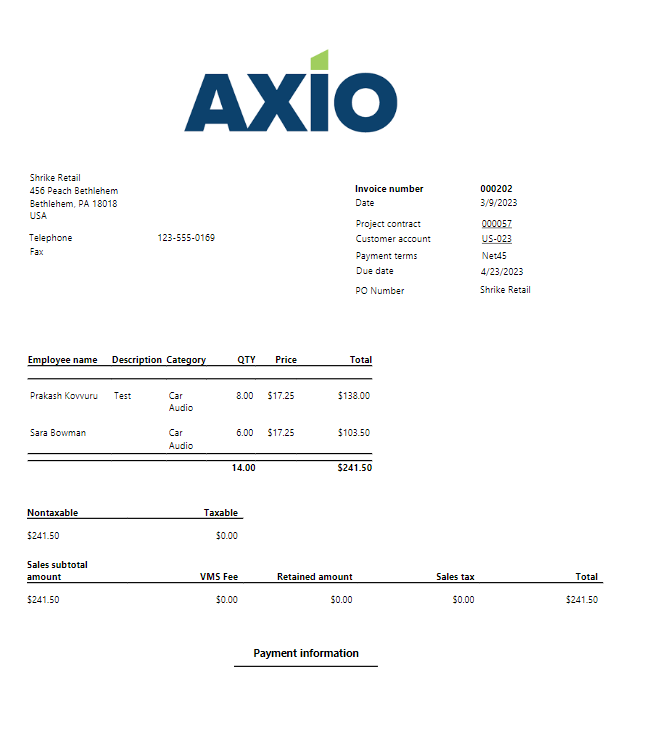
a. Department
Output:
b. WE (week ending) Date
Output: