AXIO Distribution - Automate Sales Order Hold
Overview
To enhance efficiency and streamline processes, AXIO includes the Automatic Sales Order Hold functionality. When specific conditions are met, manually created sales orders are automatically placed on hold. This allows teams such as Customer Care, Pricing, and Credit Management to efficiently review, adjust, and release orders for delivery fulfillment. By eliminating the need for manual intervention, this feature accelerates the process and ensures a seamless experience.
Setups
Enable Automate Sales Order Hold
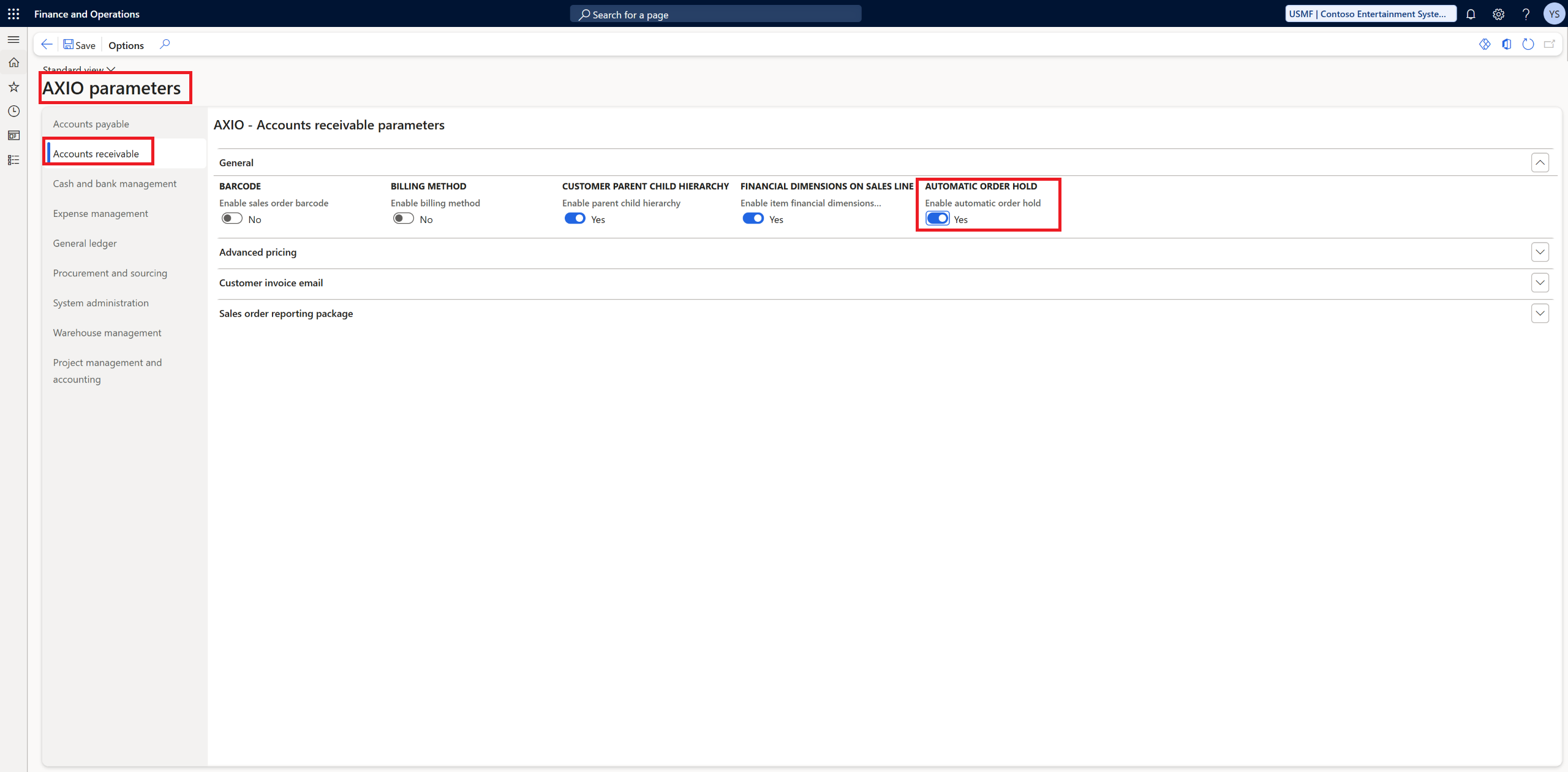
To enable AXIO Automate Sales order hold, navigate to AXIO > Setup > AXIO parameters > Accounts receivables > Enable automatic order hold.
Toggle the feature to Yes.
The Sales order hold feature needs to be configured individually for each applicable customer. To do this:
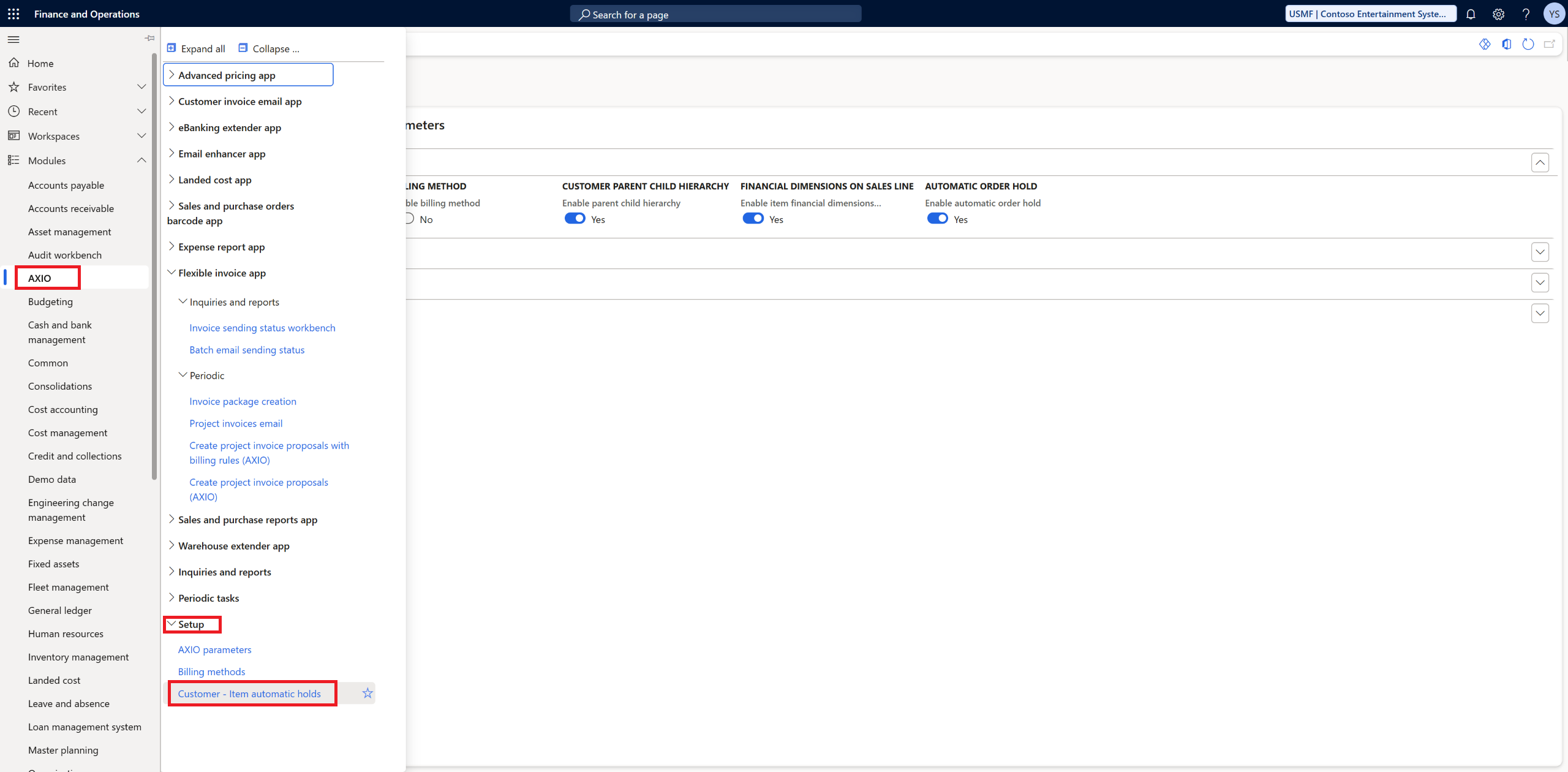
Navigate to AXIO Setup > Customer - Item automatic holds.
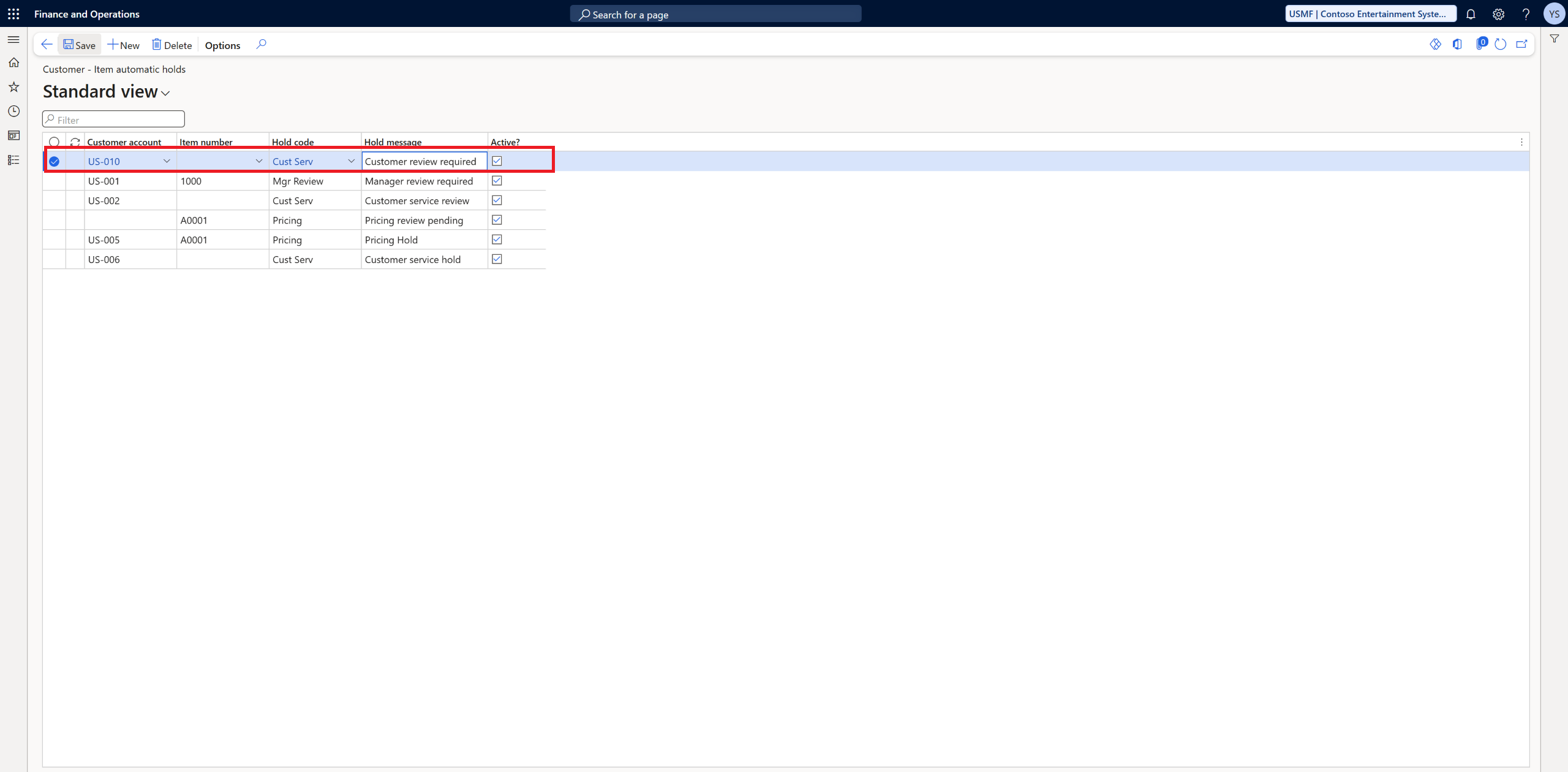
Click New.
Enter the Customer account number.
Enter an Item number.
Select a Hold code from the dropdown list.
Processing Sales orders with Automatic hold order enabled
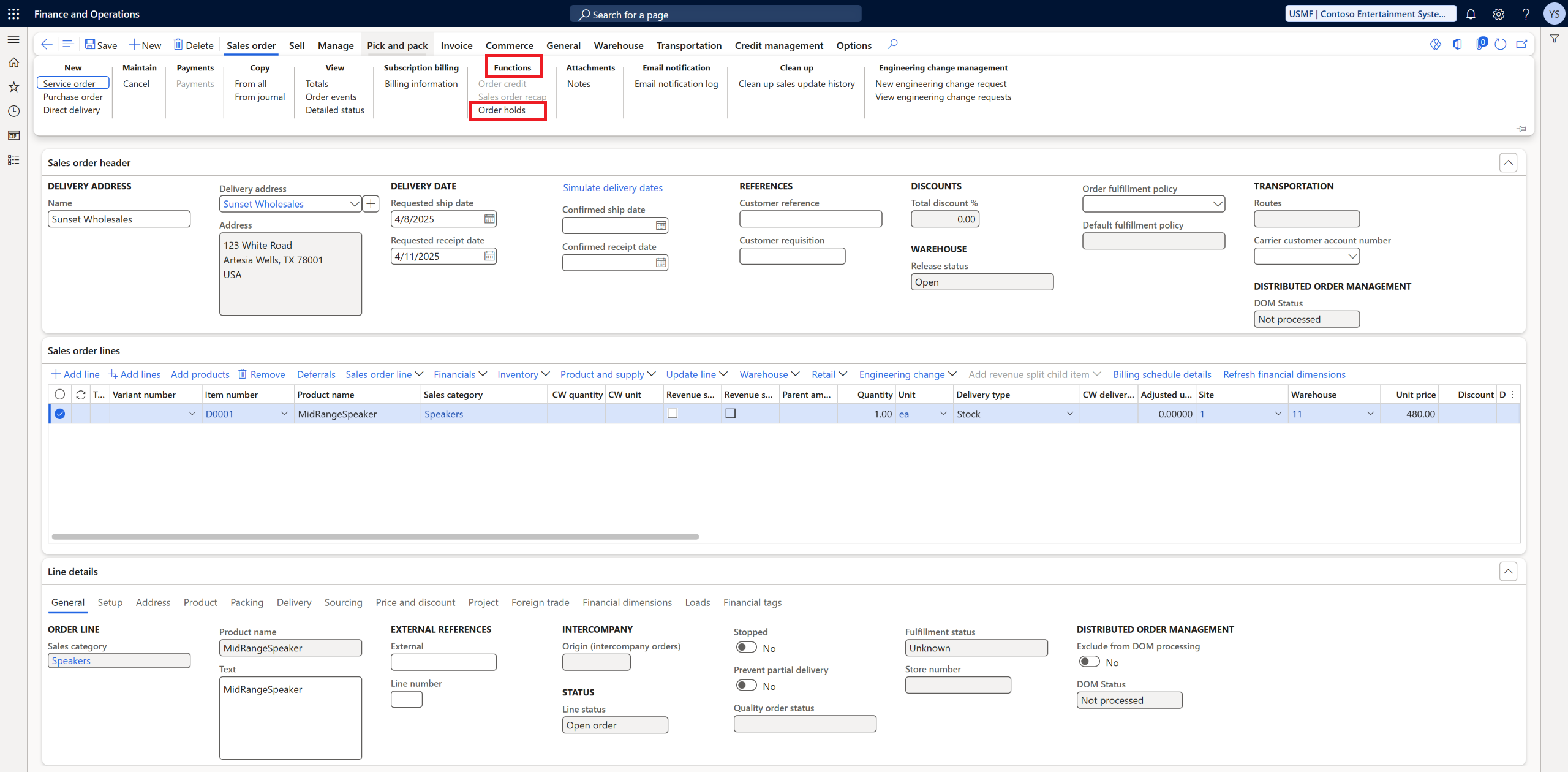
WWhen a Sales order includes a line item that is on hold, the user is required to take the following actions to view the reason for the hold:
Click Sales order from the menu.
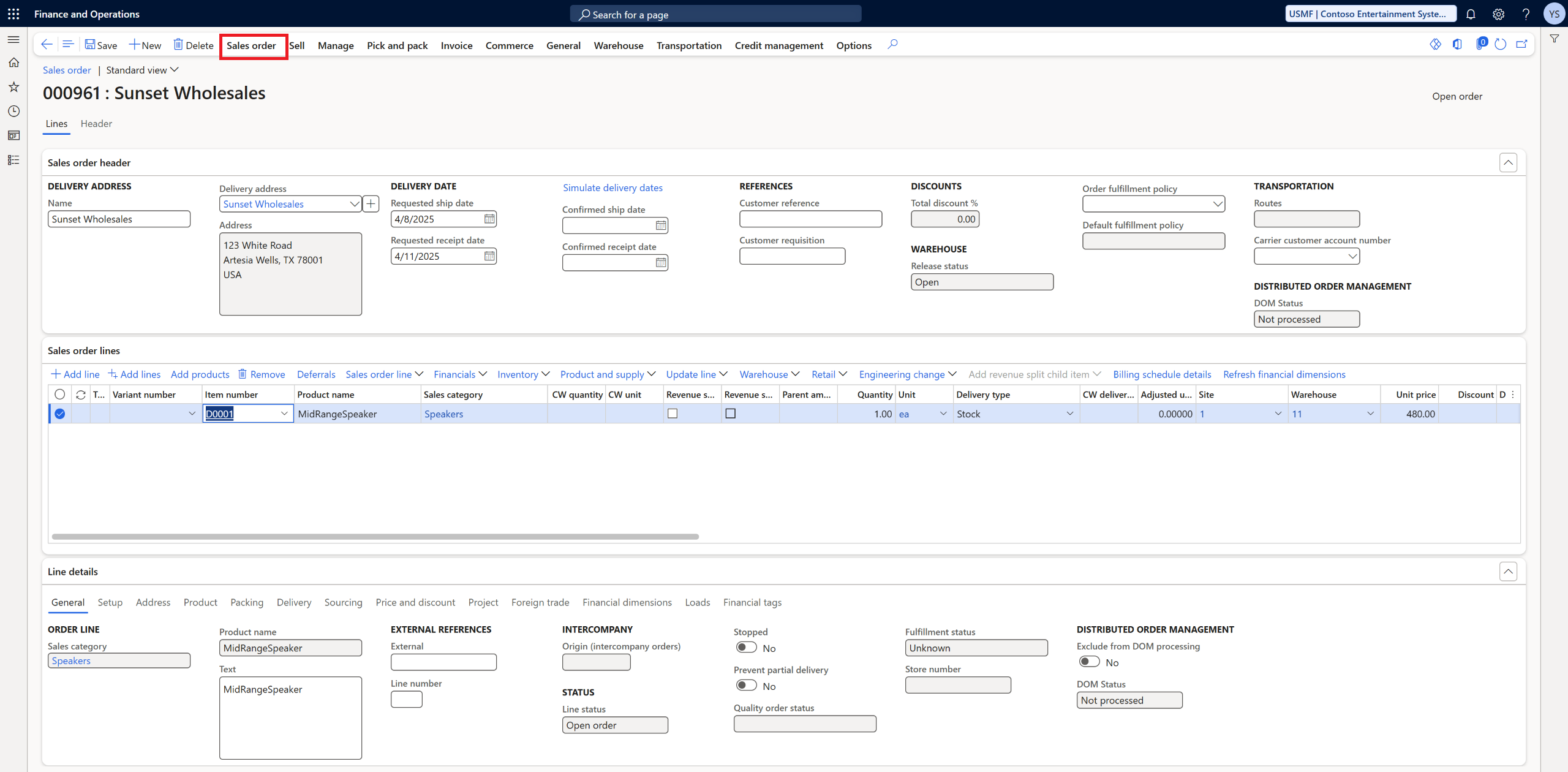
Under Functions, click Order Holds.
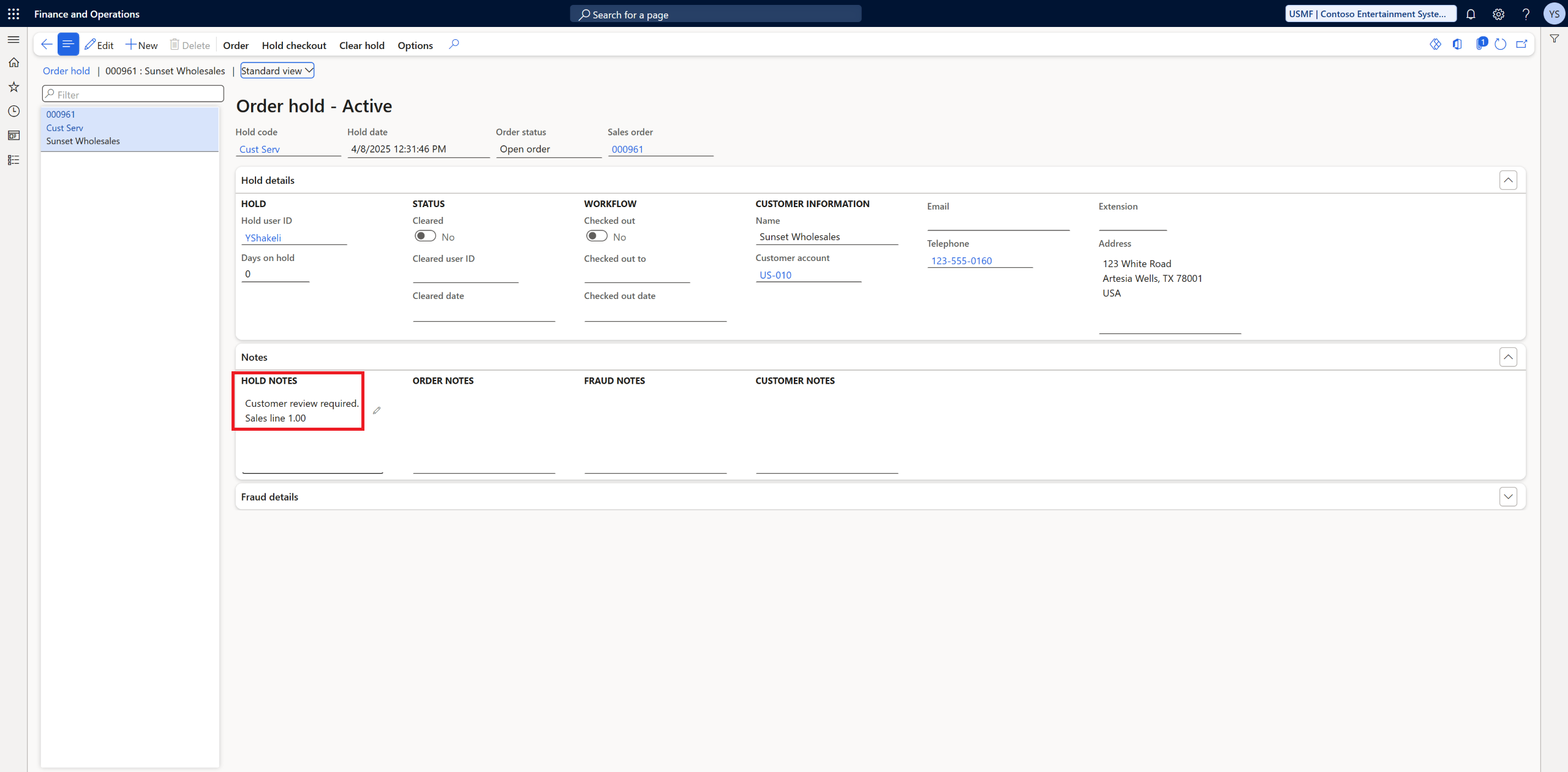
Review the Notes section for the Sales order hold reason.
For more information on Credit holds for sales orders and releasing holds on sales orders in Dynamics 365 Finance, see: Credit holds for sales orders