AXIO Finance - Sales Order and Purchasing Barcode App
The Sales Order and Purchasing Barcode App enables an organization to effectively manage the inflow and outflow of inventory in the warehouse.
Overview
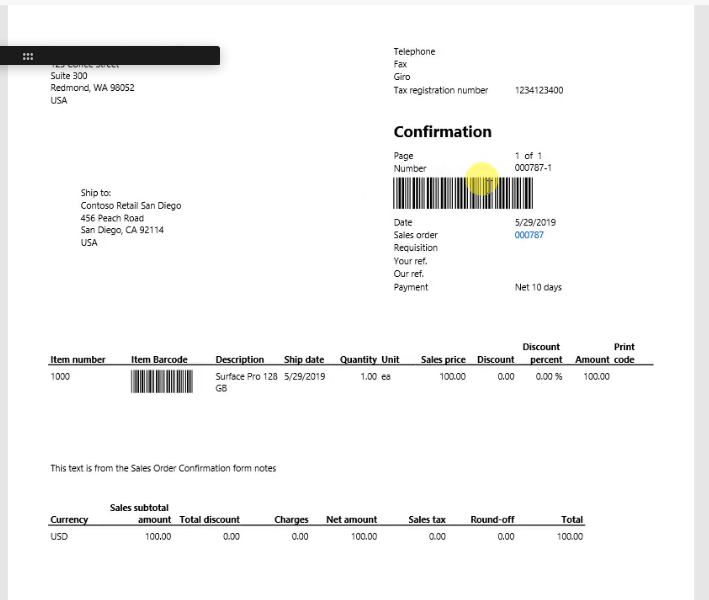
With the Sales Order and Purchasing Barcode App, a barcode will be generated for every Sales Order and line Items. This eliminates the need to manually enter the Sales Order and Item number in the scanners.
Receiving can simply scan the Purchase Order and receive the items on the PO, eliminating the need to manually enter data.
With the barcode printed, the Warehouse User can simply scan the Sales Order and respective Items through an RF scanner or mobile devices, while picking and packaging sales Items. This will save a considerable amount of time for an organization and can greatly reduce manual errors, such as typing incorrect Item numbers.
Sales Order setup
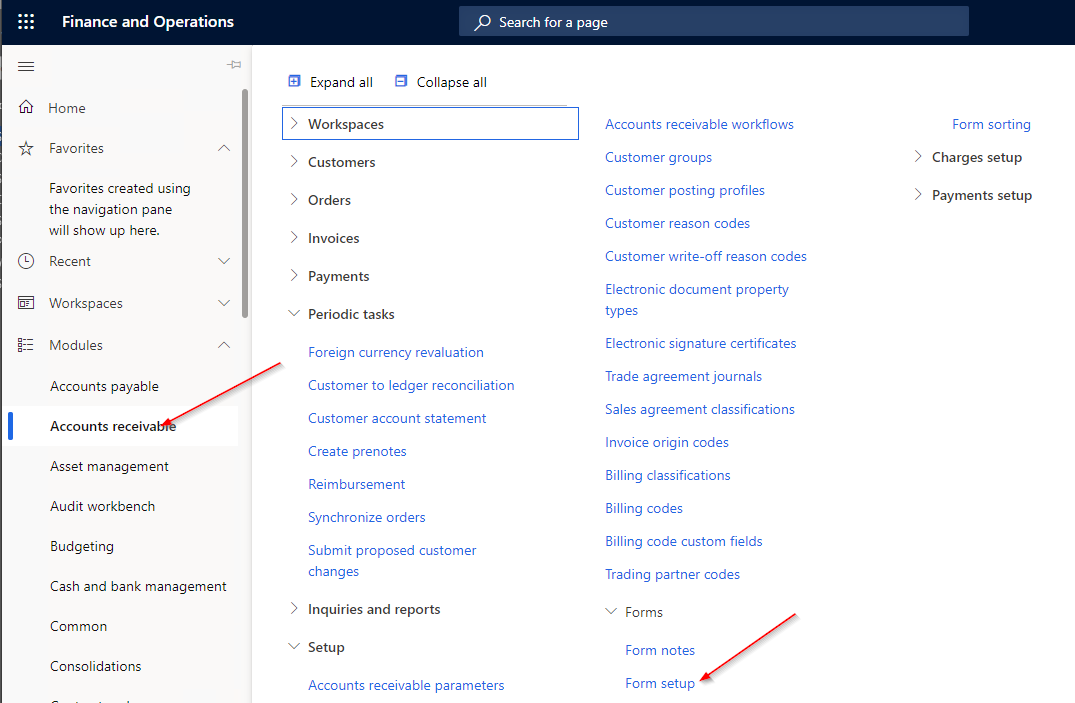
Navigate to: Accounts Receivable -> Setup -> Forms -> Form setup
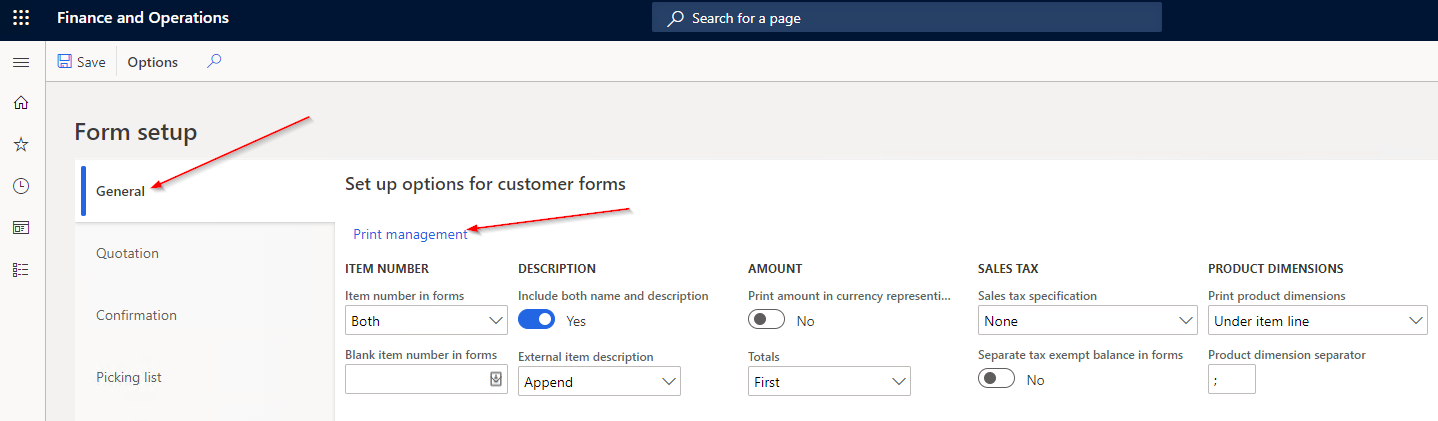
Select the General Tab and select Print management.
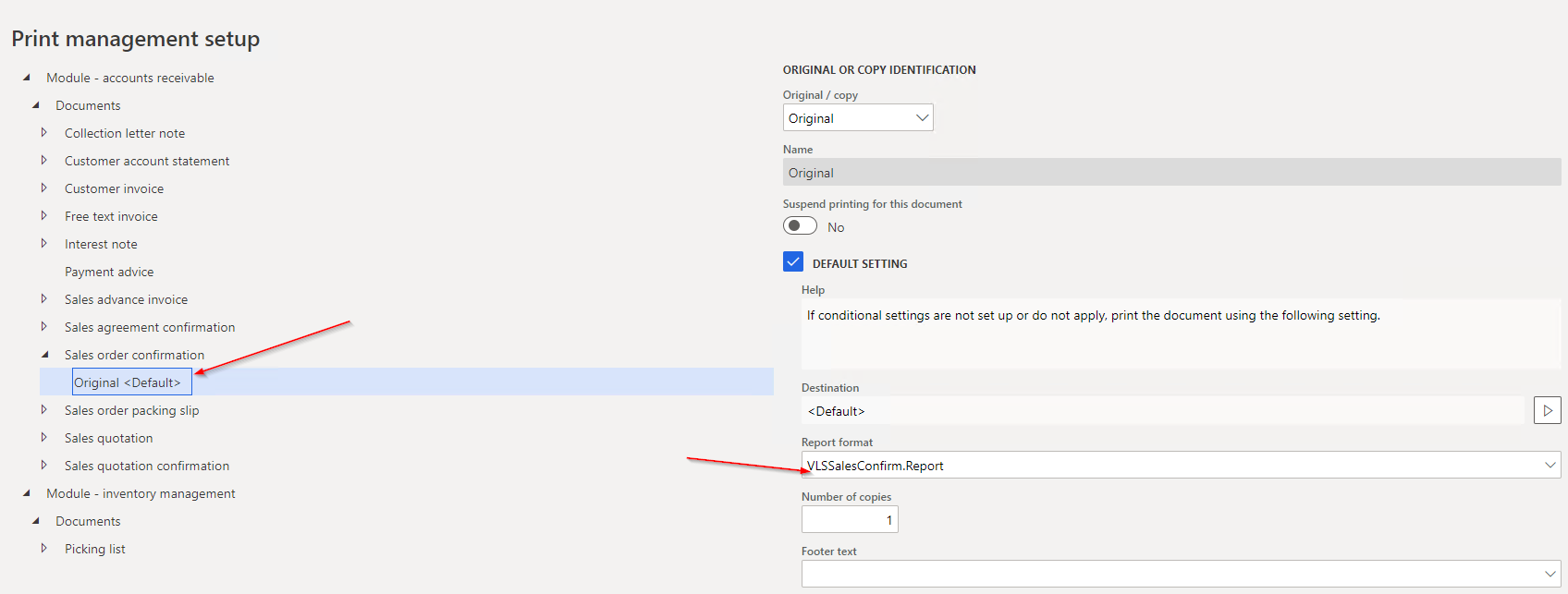
In Print Management Setup, select Original under Sales order confirmation to select the new report format created.
Printing Barcode for Sales Documents
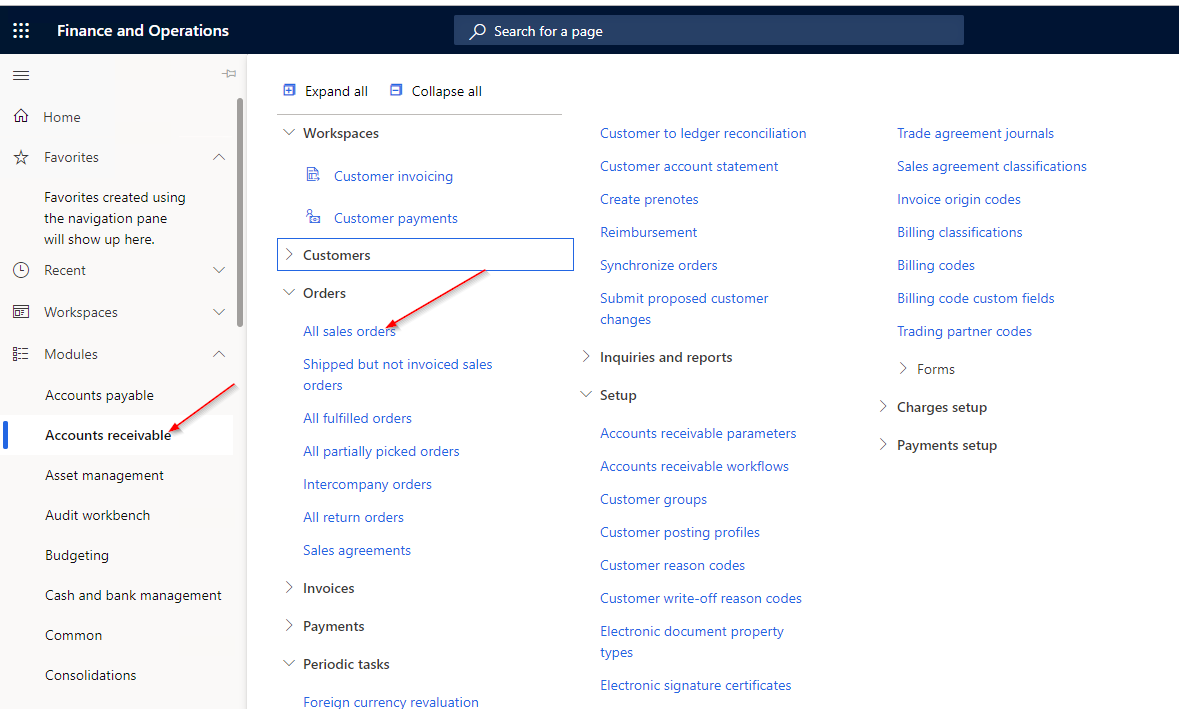
Navigate to Accounts Receivable -> Orders -> All sales orders.
Select an open Sales Order which is confirmed.
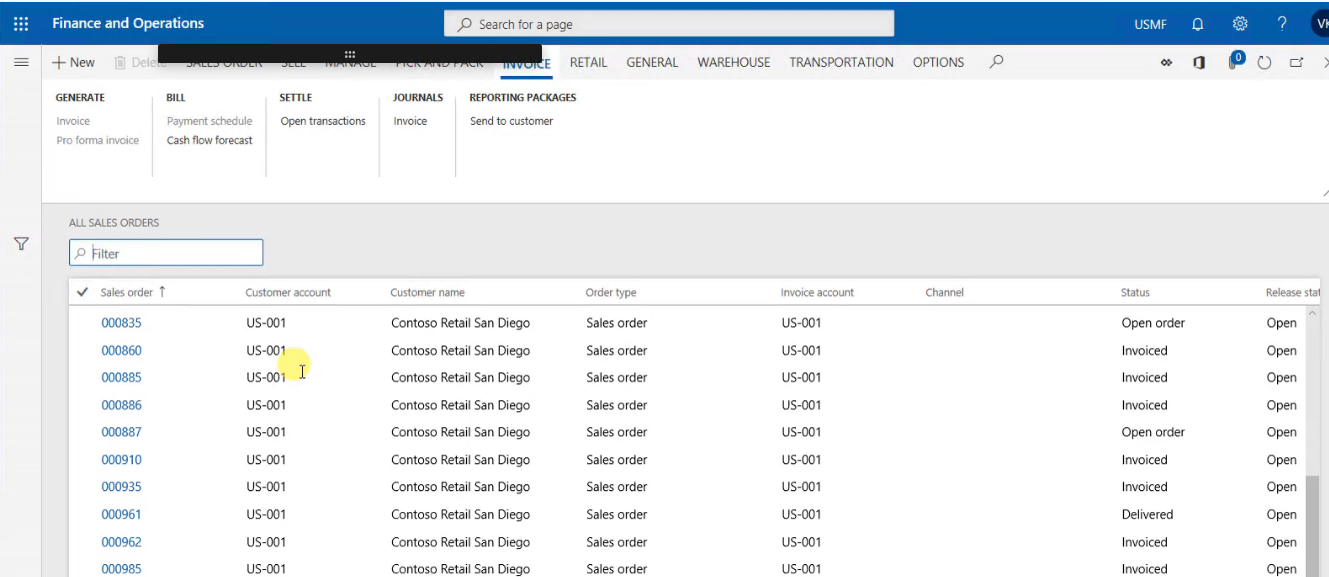
Navigate to the Sell option and select the Journals Tab, then click Print Sales Order Confirmations.

The Sales Order confirmation page opens.
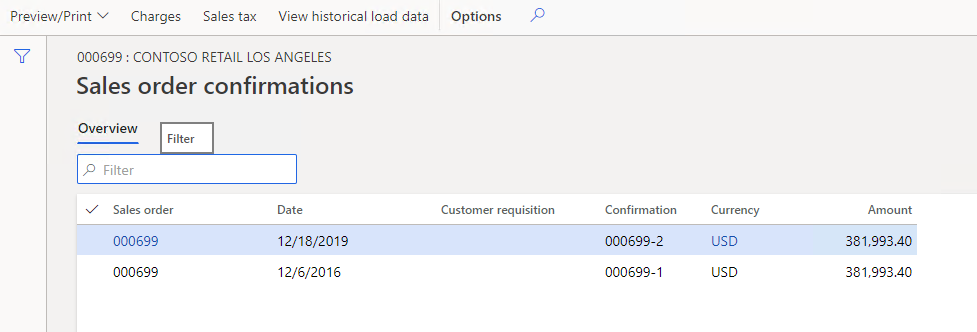
Click Preview and Export to PDF and the Confirmation opens with the bar code. While packing the goods the user can use the Sales Order bar codes for both the Sales Order and the Items.
Purchase Order setup
Navigate to: Accounts Payable -> Setup -> Forms -> Form setup.
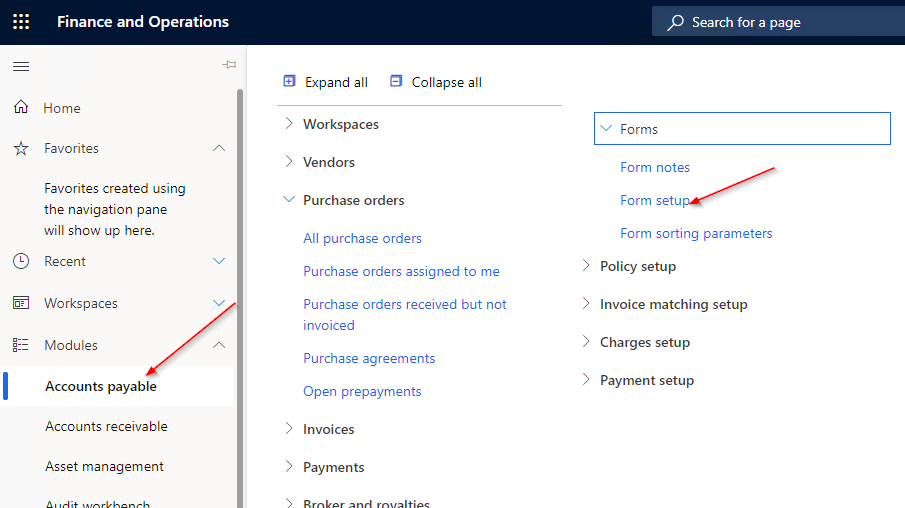
Select the General Tab and select Print management.
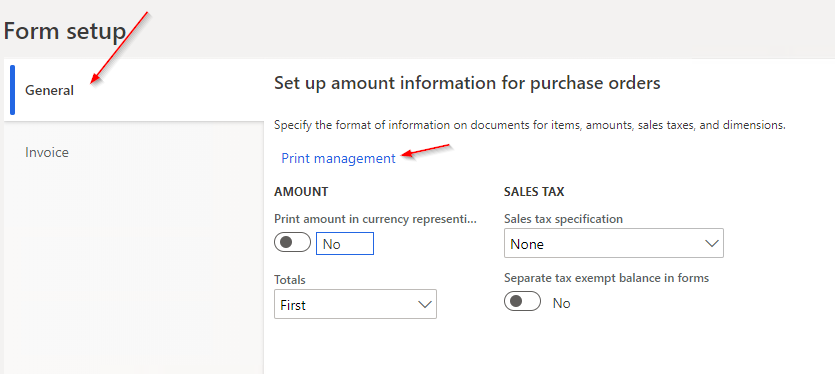
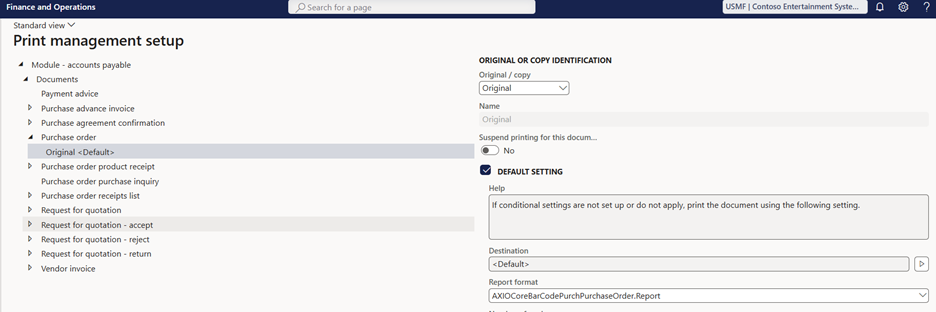
In Print Management Setup select Original under Purchase order confirmation to select the new report format created.
Printing Barcode for Purchase Documents
Navigate to: Accounts payable -> Purchase Orders -> All Purchase Orders
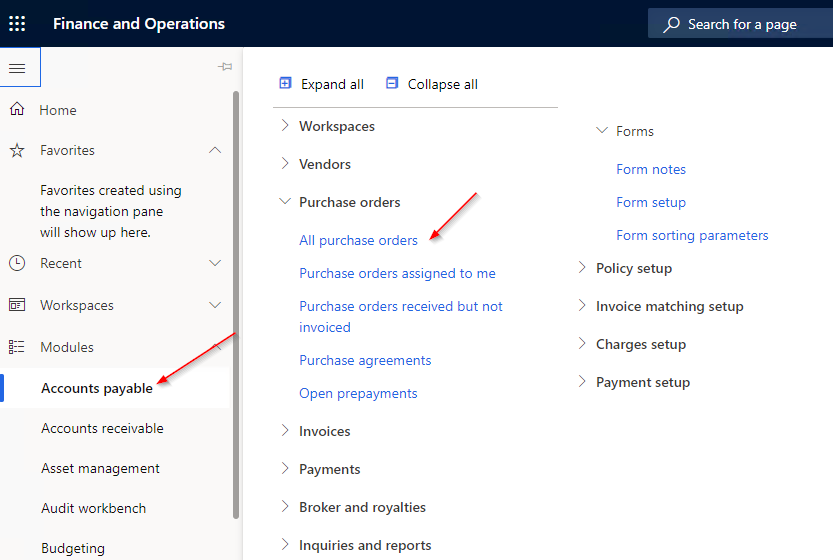
Select an open Purchase Order which is confirmed.

Navigate to the Purchase option and select Journals Tab then click on Print Purchase Order Confirmations.

The Purchase Order confirmation page opens.
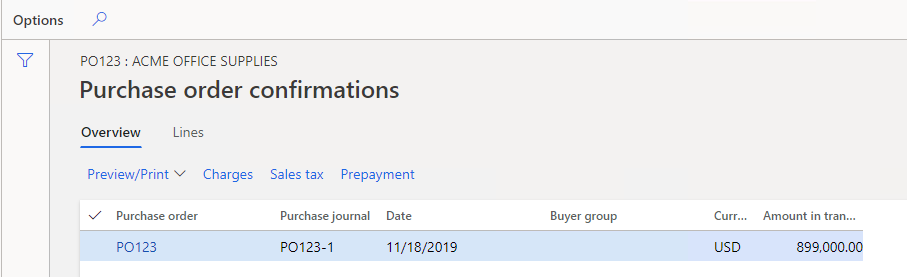
Click Preview and then Export to PDF. The Confirmation will appear with the bar code. While receiving the goods the user can use the sales order bar codes for both the Purchase Order and the Items.