Advanced Pricing Processing
Scenario-1
Advanced Pricing with Sales Agreement

Path: Go to Advance Pricing >> Prices >> Advance Pricing
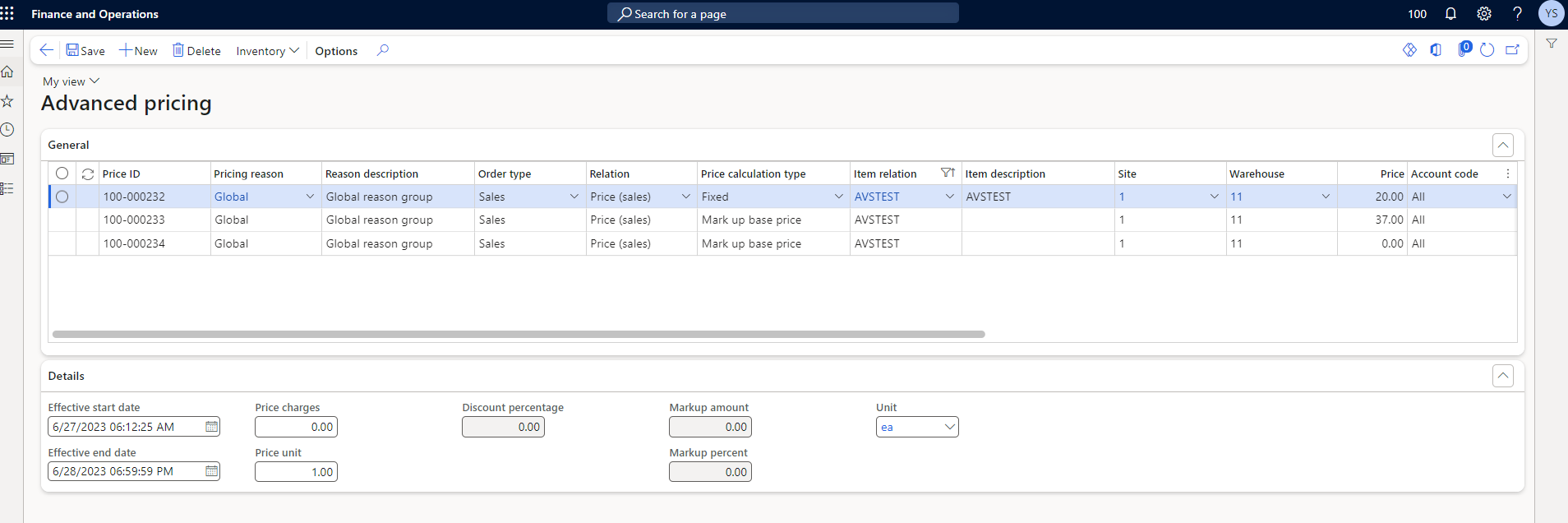
Click New and enter the details as shown in the above table.
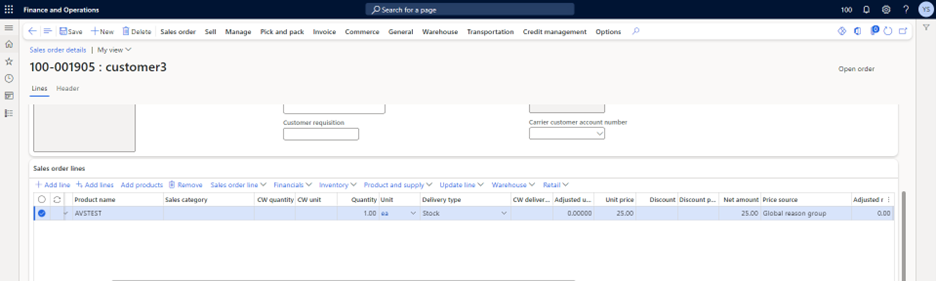
Output- $15 + Item base Price = $15 + $10 = $25
Results- As expected.
Scenario 2

Path: Go to Advance Pricing >> Prices >> Advance Pricing
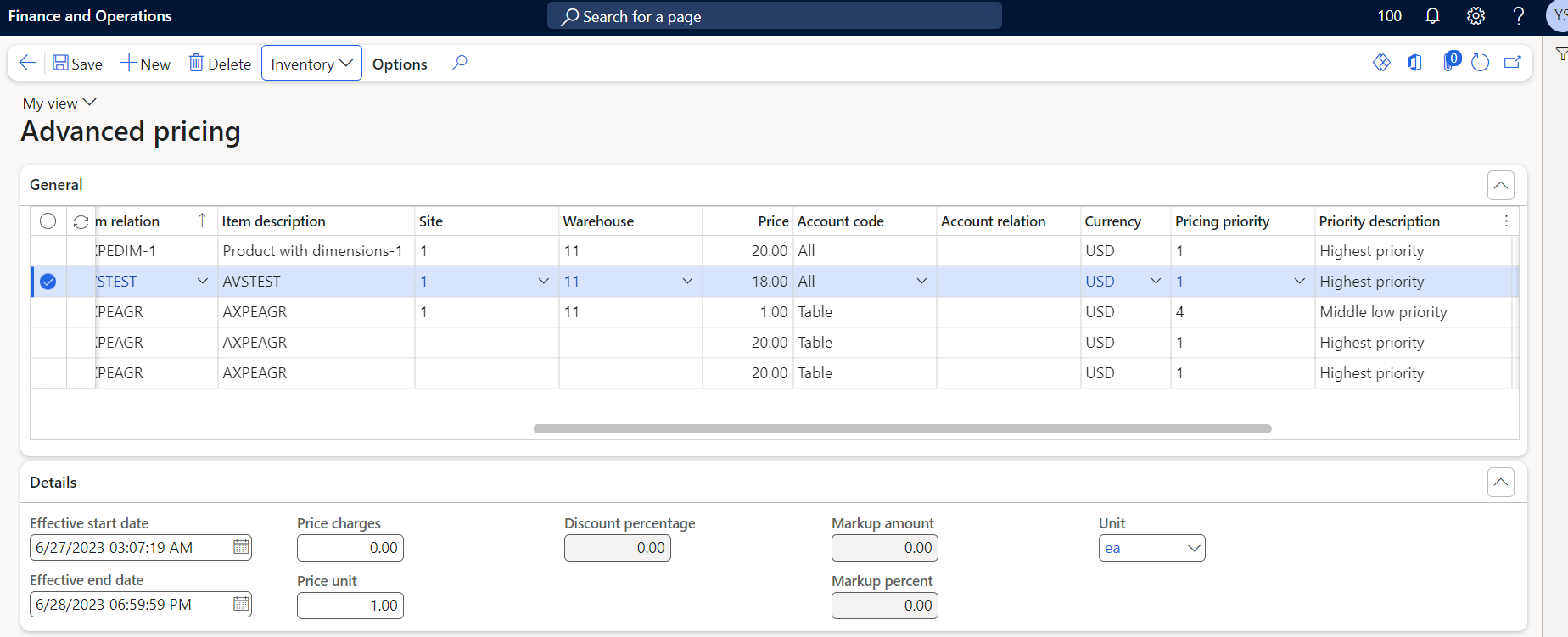
Click New and enter the details as shown in the above table.
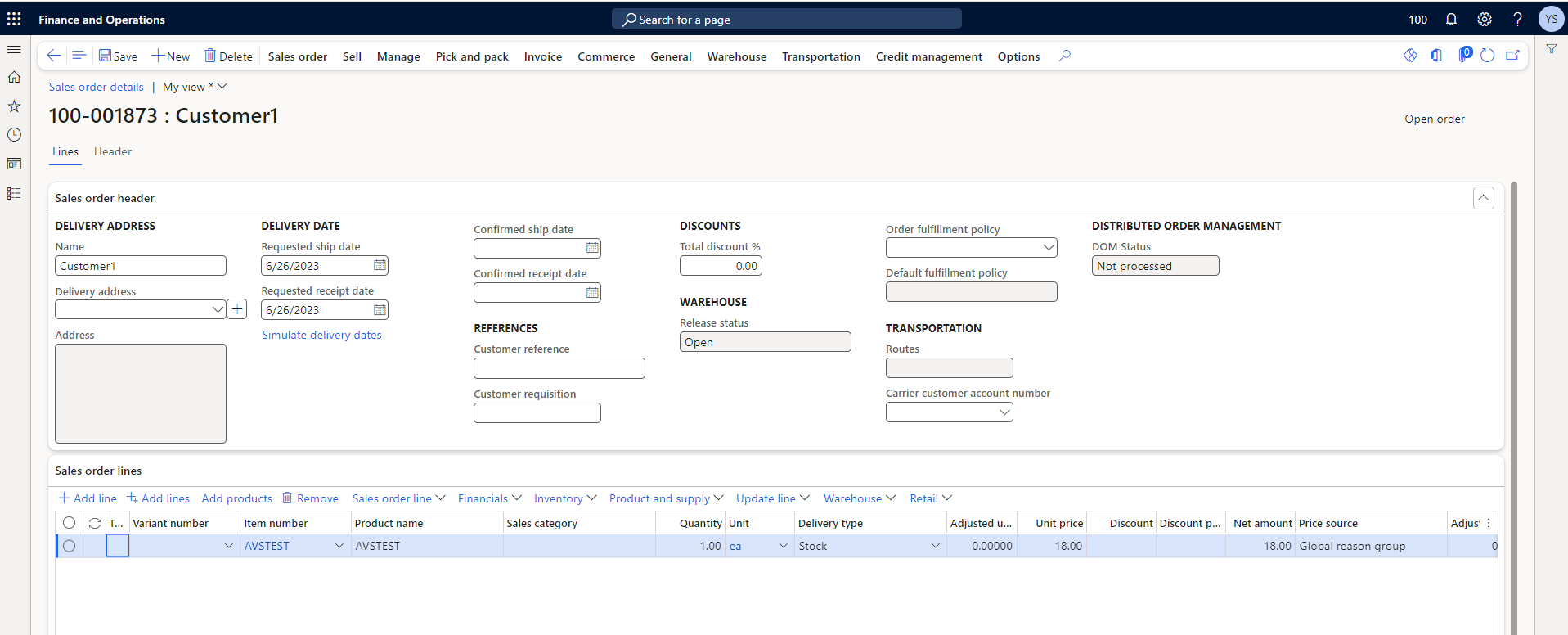
Output – The Sales Line should pick the Price $18
Results- As expected.
Scenario 3
Sales Agreement for the Item with defined Advance pricing
The standard functionality of D365 Finance is the Sales agreement price will be used and not the AXIO pricing.
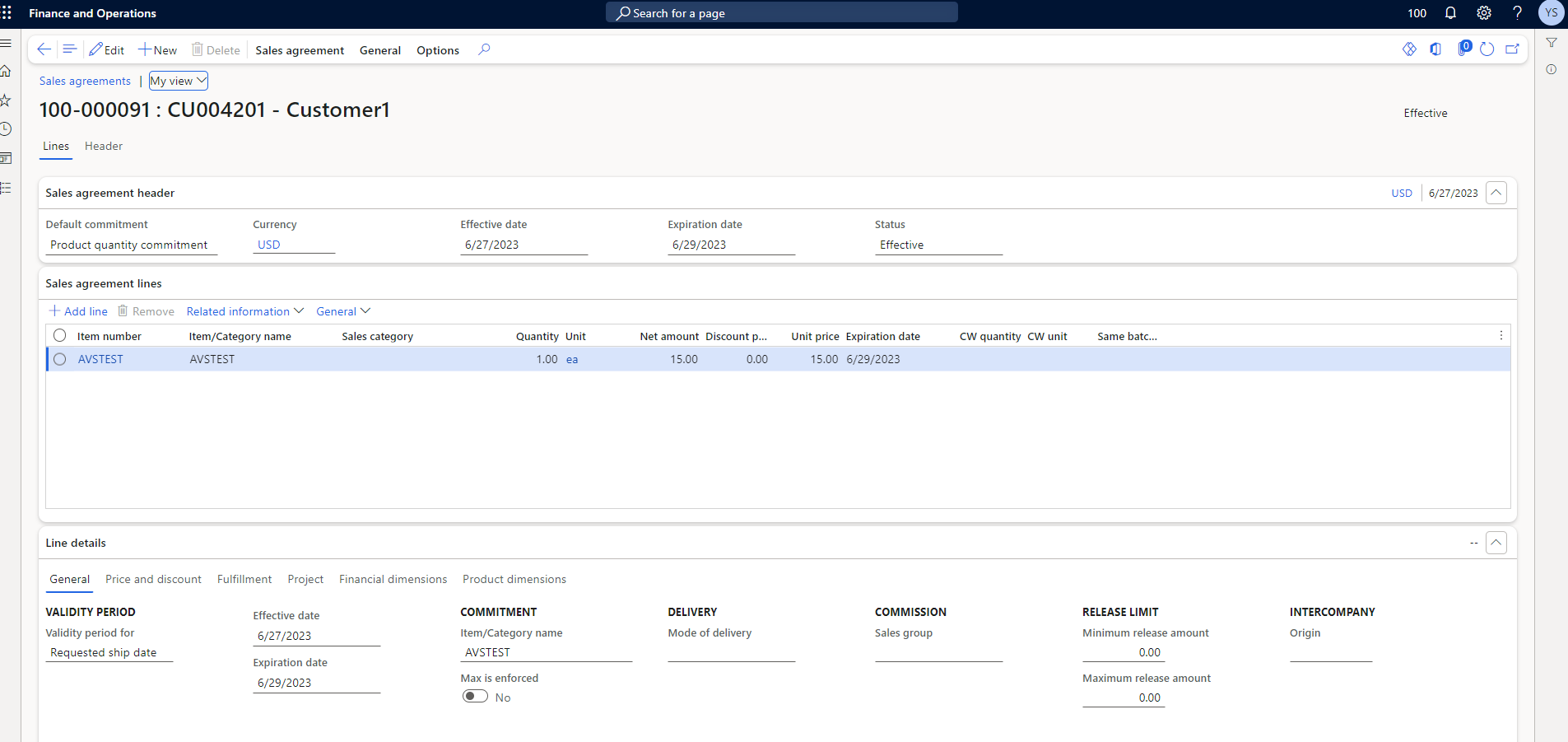
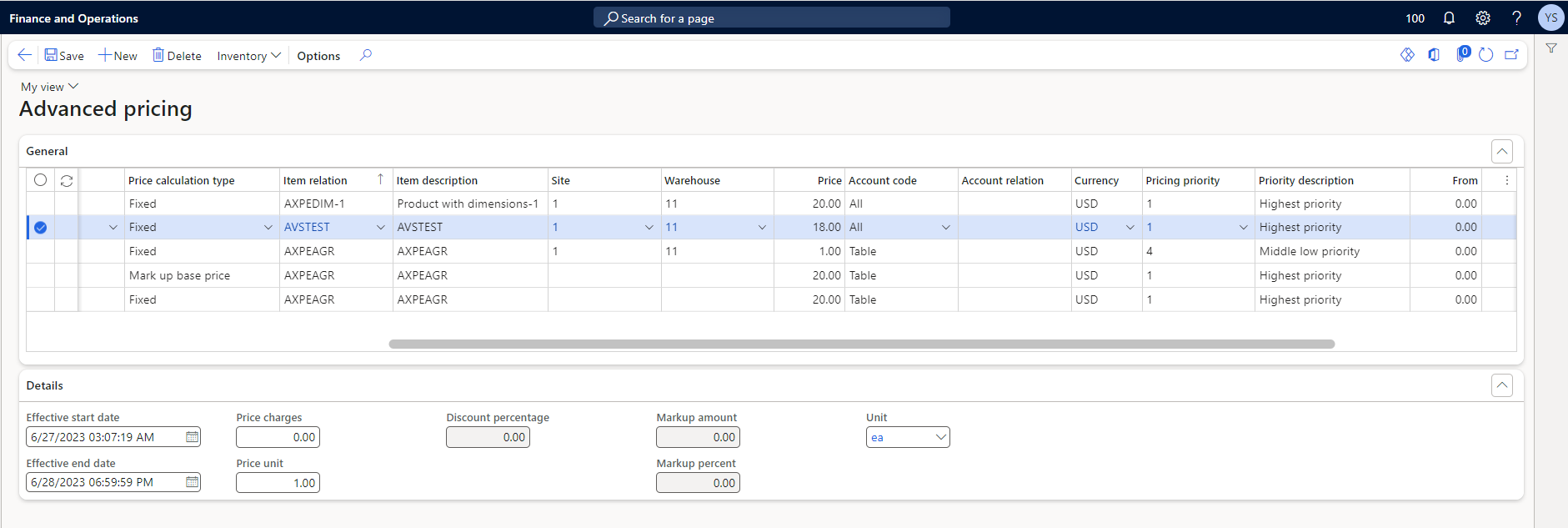
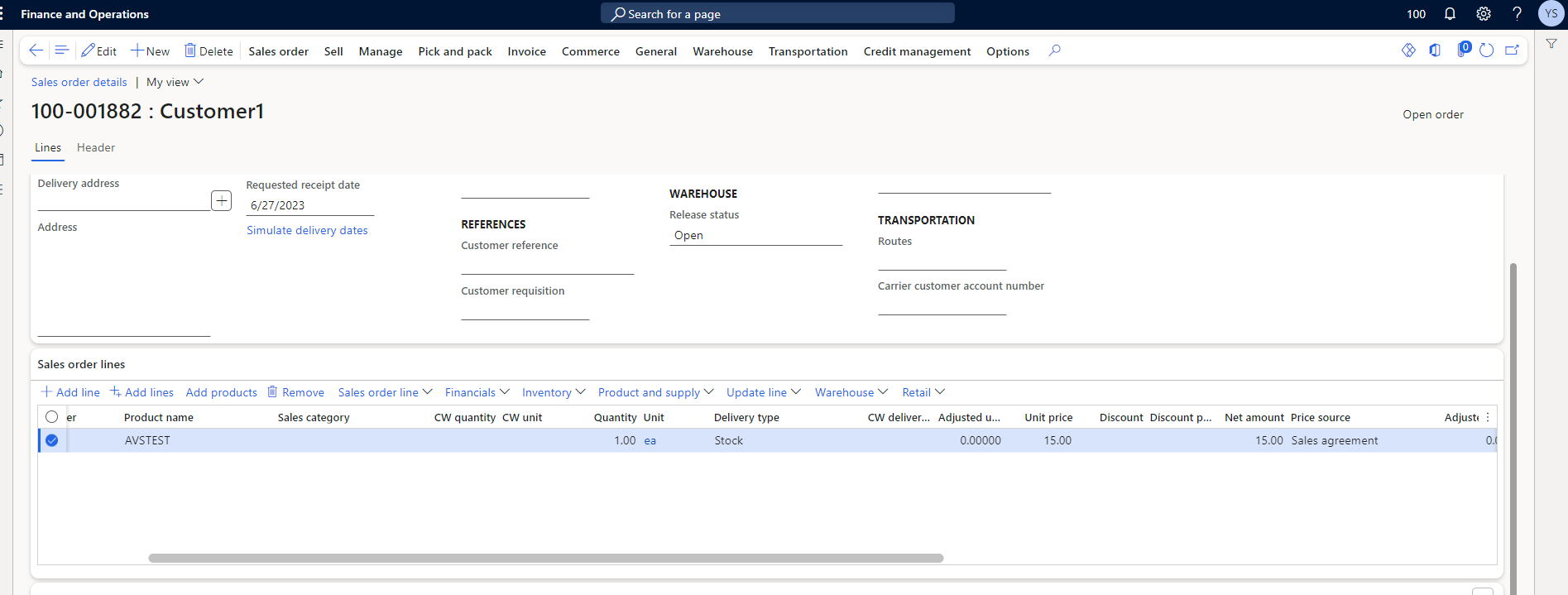
Output- The Sales Line uses the price of $15 from the Sales agreement.
Results- As expected.
Scenario 4
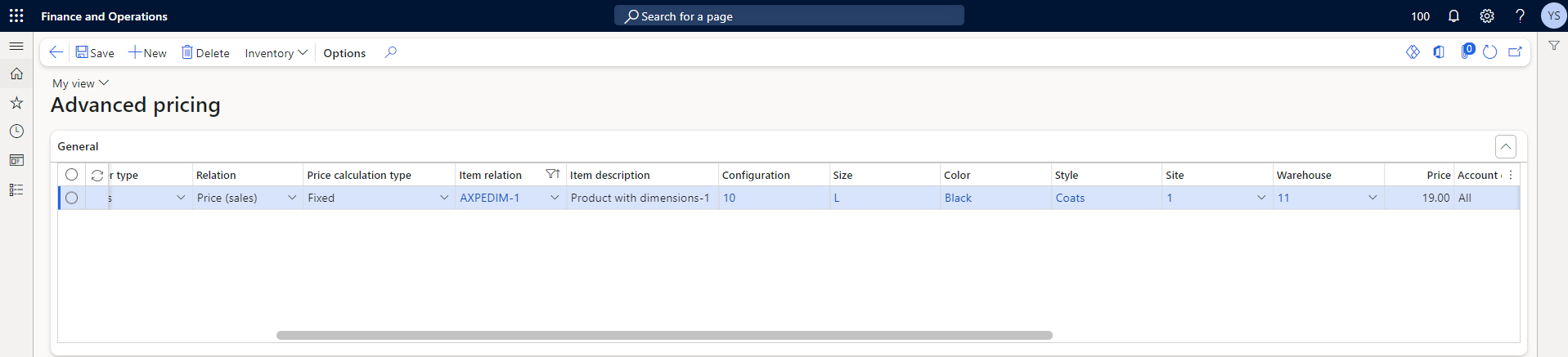
In this scenario, we consider the Dimensions of the Product.

Click New and enter the details as shown in the above table.
Output- The Price should be picked from Advance pricing of $19.
Results- As expected
Scenario 5
In this scenario, Account code is considered.

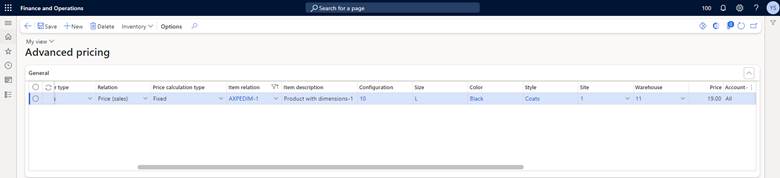
Click New Enter the details as shown in the above table.
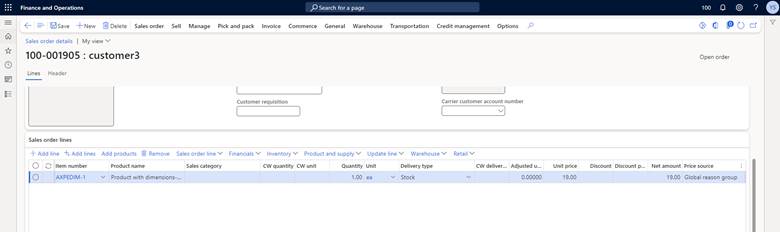
Output- The Sales Line should pick $16.
Results- As expected.
See also
-